The Memory Booked editor

Your book lays itself out. You make it yours.

Every contribution arrives already arranged on its own page. Then you step in only where you want to: swap a layout, feature a favorite photo, change a font, move a page. You don't need to be a designer, and you never start from a blank page.

See the hardcover

Free to set up. You pay only when you decide to print.

Pages arrange themselves Autosaves as you go Free PDF anytime
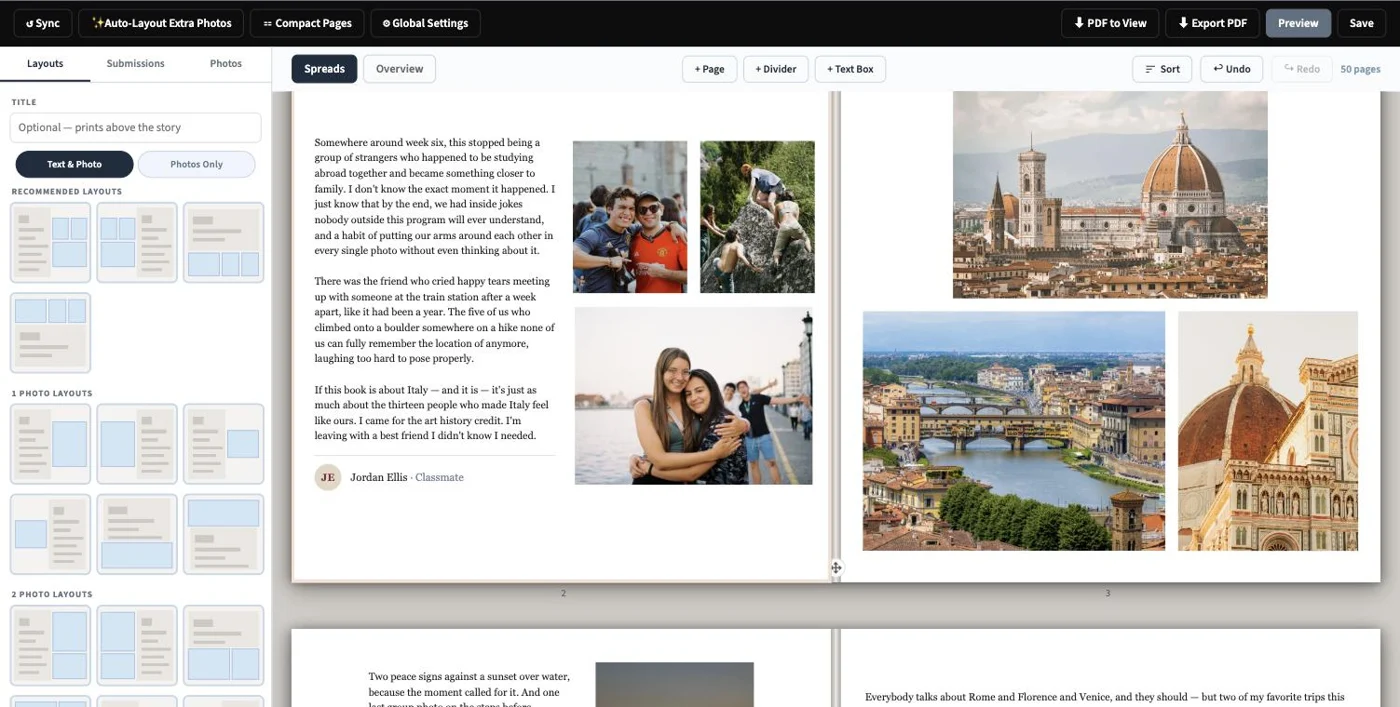
The Memory Booked editor showing a two-page spread of the Italy Study Abroad book, with page layout choices on the left
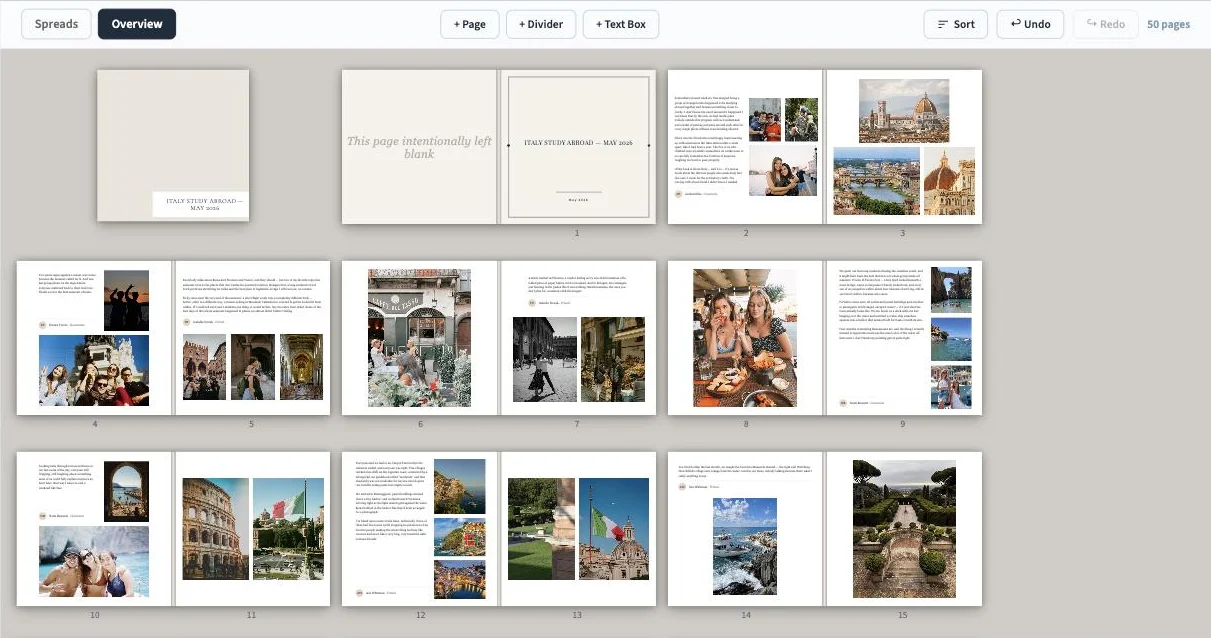
The whole book at a glance

See every page, and move things around.

Open the overview to see the entire book at once, spread by spread. Drag a page to a new spot, and use Undo whenever you change your mind.

  • Spreads, just like the printed bookPages show side by side the way they'll sit when the book is open.
  • Sort in a clickPut contributions in order by submission date, name or relationship.
  • Nothing is permanentUndo takes back your last change, and your work autosaves a few seconds after every edit.
The editor's overview of the Italy Study Abroad book, showing every spread
Choosing a page layout in the editor
Change any page

Pick a layout and it's done.

Click a page and the layouts that suit it appear on the left, from a single large photo to several smaller ones beside the story. Click one and the page rearranges.

  • Click right on the pageClick any text to edit it in place, or click a photo to swap, crop or brighten it.
  • Feature your favoritesMark a photo with a heart to show it larger on its page, or a star to give it a page of its own.
  • Add anything you likeAdd a blank page, a divider that starts a new section, or a text box anywhere you want a few words.
Everyone's contributions, in one place

Every story and photo, ready to place.

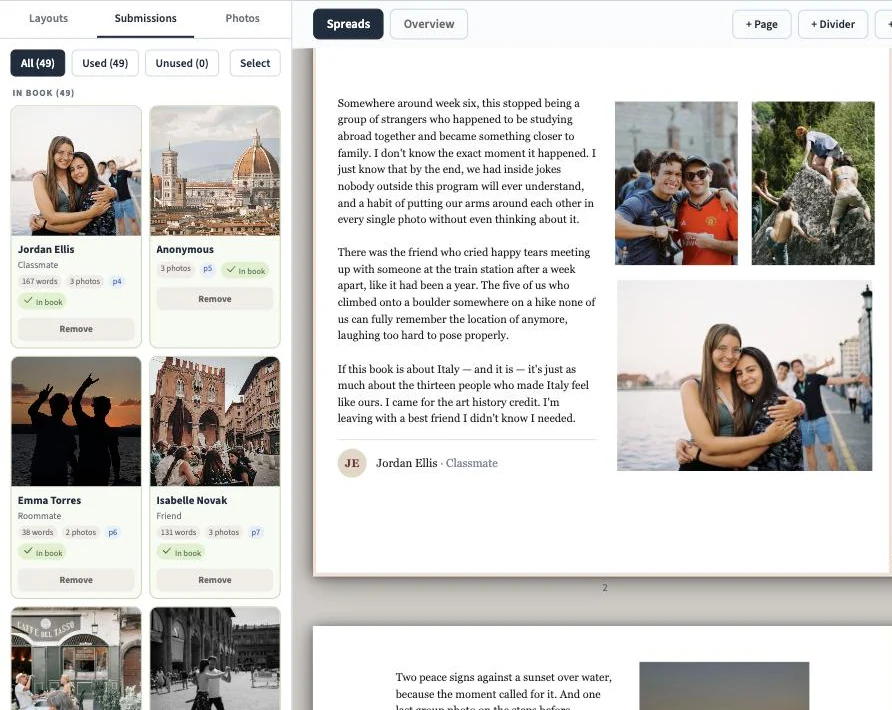
The Submissions tab lists everyone who added to your book, with their words and photos and the page they landed on. New contributions never rearrange what you've already done.

  • Sync when you're readyApproved contributions join the book when you click Sync, added as new pages just before the back cover. Nothing else moves.
  • Use every photoIf someone sent more photos than fit their page, Auto-Layout Extra Photos spreads the rest across photo pages through the book.
  • Short notes don't waste a pageCompact Pages puts brief written tributes two to a page.
The Submissions panel listing each contributor with their photos and the page they appear on
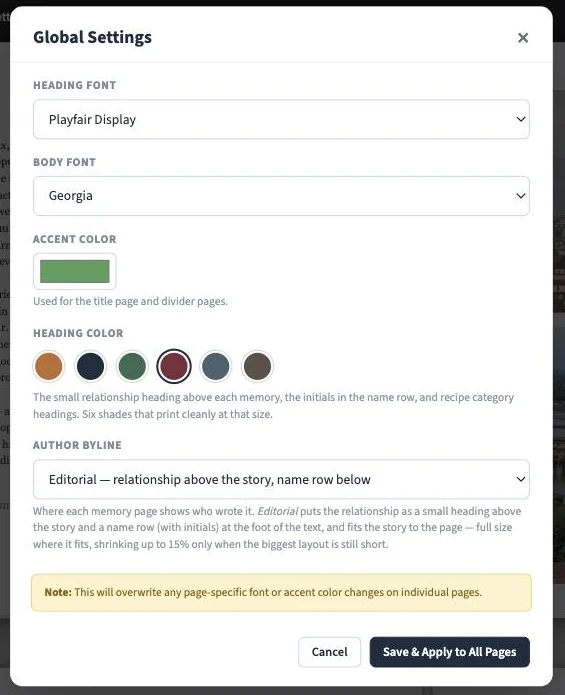
Global Settings with heading font, body font, accent and heading colors, and author byline choices
One look for the whole book

Change the style once. Every page follows.

Choose the heading and body fonts, an accent color and a heading color from shades that print cleanly. Then decide where each contributor's name appears. The whole book updates together, so it feels like one book and not a pile of pages.

And the rest

Everything you need, nothing you have to learn first.

A guided tour

The first time you open the editor, a short walkthrough points out each control. Replay it any time from the Tour button.

Preview the finished book

Flip through every page as it will print before you decide to order.

A free PDF

Download your book as a PDF whenever you like, whether or not you ever print it.

Mark it complete

When the book is finished, one click closes new submissions and lets everyone who followed or contributed know they can order their own copy.

Cookbooks, too

Family recipe books get a contents page grouped by category and page numbers on every recipe. Contributors can even snap a photo of a recipe card to fill in the form.

Help when you need it

A built-in FAQ answers common questions, and you can message our team right from the editor.

You're in control

Nothing prints until you say so.

Look over every page, make your changes, and download the PDF. When it looks right, order your hardcover. Your book is printed in about 4 days and then on its way to you.

Start a book and see how easy it is.

Setting up takes a couple of minutes, and it's free until you print. Invite everyone, and the pages will be waiting.